Wayfarer
Share locations with Groups
Use a Group to share live and historical locations with named Wayfarer users on your instance. Join only when you are comfortable sharing with its members. Group sharing is separate from making your Timeline public.
Create or join a Group
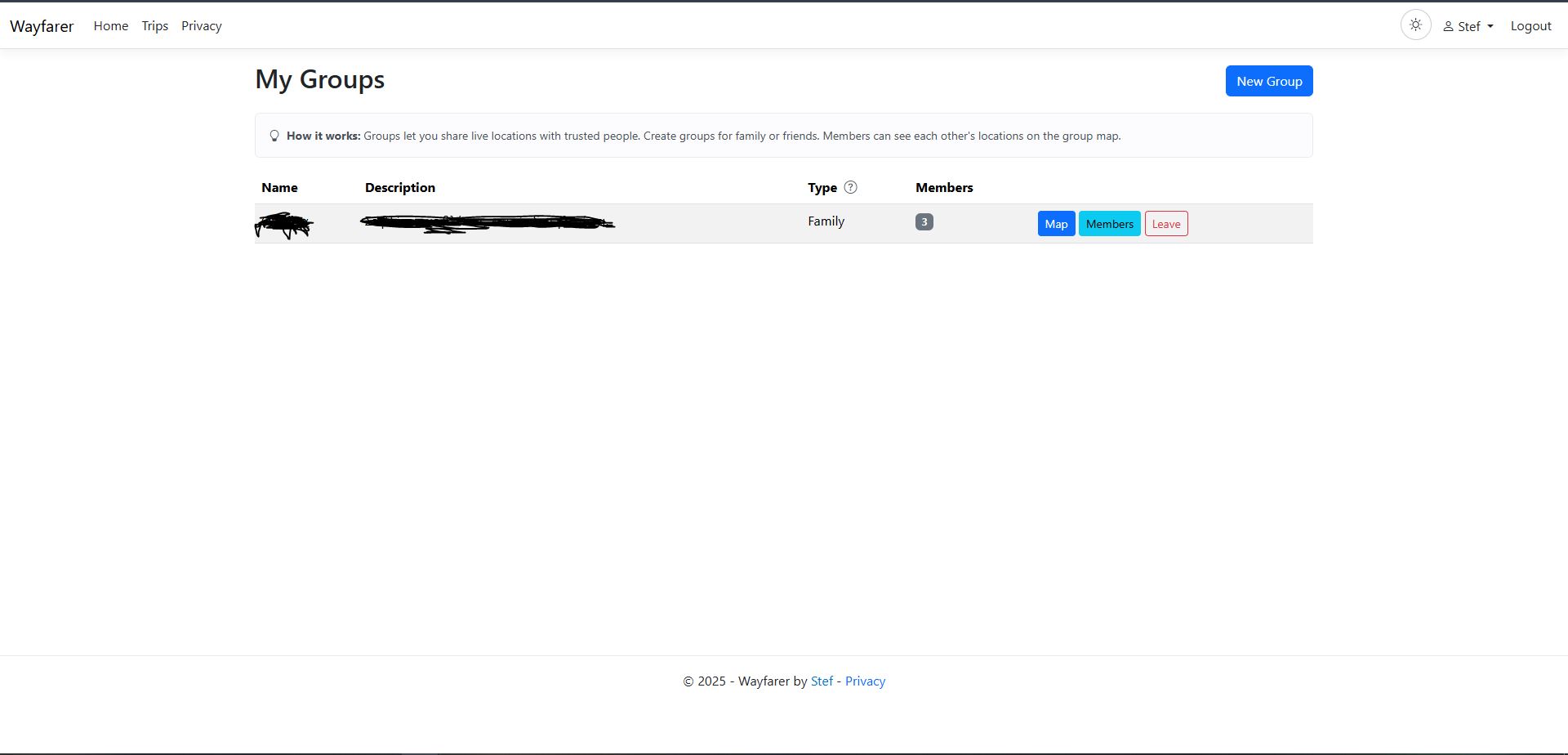
Open My Groups from your name menu. Choose New Group, enter a name and optional description, then select Family or Friends and create it. Organization Groups are created through Manager or Admin tools; an ordinary User can join one by invitation.
From the Group’s Members page, an owner can search for an existing user by username or display name and send an invitation. Only registered accounts on your instance can be invited; email invitations are not supported. Invitations are handled inside Wayfarer. The invited user opens Invitations and chooses Accept or Decline. An accepted invitation adds that user to the Group; a pending, expired or cancelled invitation does not grant membership.
Owners and permitted managers can review pending invitations and cancel those that are no longer wanted. Accept or decline invitations in the Web Invitations page, then reload your Groups in Mobile to view the resulting membership.
Understand Group roles
These roles belong to the Group, independently of account roles:
| Group role | Responsibility |
|---|---|
| Owner | Own membership and Group management, invite or remove members, and manage Group settings. |
| Manager | Help manage invitations and members through the management tools; appointing managers is an owner’s responsibility. |
| Member | View permitted Group locations, receive updates and leave the Group. |
Organization Groups retain an Owner or Manager to manage them. Wayfarer refuses a membership change that would leave an occupied Organization without the required management successor.
Management requires an active Group role. Leaving or removal ends that authority, and an ordinary re-invitation rejoins you as a Member; an old Owner or Manager role is not restored. Archived Groups are unavailable to members and managers.
Choose your sharing visibility
Every Group requires active membership to view or share locations:
| Group type | Who can see your locations? |
|---|---|
| Family | Every other active member. There is no personal opt-out. |
| Friends | Other active members while your personal sharing switch is on. |
| Organization, sharing off | Only you. This is the default. |
| Organization, sharing on | Other active members while your personal sharing switch is on. |
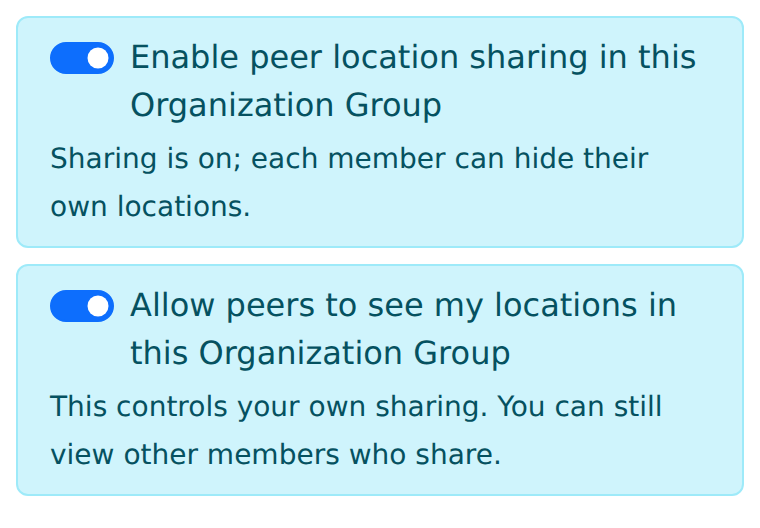
On the Group Map, use Allow peers to see my locations to hide your own latest and historical locations in Friends or an Organization with sharing on. You can still see your own records and other members who share. Group Owners and Managers follow the same location visibility rules as everyone else.
Active Organization Group Owners and Managers can set Enable peer location sharing in this Organization Group on the map, including through My Groups when their account role is User. This switch applies only to that Group. Turning it off hides all peer locations; turning it back on preserves each member’s personal opt-out. Organization Groups whose existing switch is off now enforce self-only access; ask your Group’s Owner or Manager about enabling sharing.
WayfarerMobile 1.3.0 offers the personal Organization sharing toggle when Group sharing is on. Reload the Group after its policy changes to refresh that control. Already viewed or downloaded locations may remain on an older or disconnected client; changes prevent future authorized queries and live deliveries after they are saved, and cannot remove copies someone already has.
Your public Timeline’s private/public switch, delay and Hidden Areas do not govern Group access. A Group can reveal locations that are absent from your public Timeline, including recent locations and history. Turning off phone tracking stops new automatic recordings, but does not remove locations already shared.
Use the Group map
Choose Map from My Groups. The map shows permitted members’ latest positions and receives live updates while connected. Check timestamps: a last known location does not guarantee somebody is still there.
Use member search, selection controls or Only to focus on a person. The show/hide marker controls adjust your own display; they do not change who can see your position. Use your Group’s personal sharing control for that decision.
Switch day, month or year, choose a date and enable historical locations to review past records. Dense month/year views can show sampled markers. Reaching the end of the Group’s displayed results, including the last page on your phone, does not mean every stored location was returned. Use your own Timeline table and export tools when you need to find or export your stored history. Select a location to inspect its time and details. WayfarerMobile provides a Group map on your phone too.
On your phone, you can navigate toward a selected member’s latest shared position. Check its timestamp before setting off: that position may already be stale.
Leave or remove membership
Choose Leave in My Groups when you no longer want to participate. An owner leaving a Family or Friends Group transfers ownership to the next active member. An Organization owner needs an eligible Manager successor while other members remain. The Group is removed when its final active member leaves.
Owners and permitted managers can remove members through membership management. Leaving or removal ends that membership’s access and sharing through the Group; it does not delete the person’s own Timeline. Other members may still have copies of information they saw, and your memberships in other Groups remain separate.