Wayfarer
Timeline and locations
Use your Timeline to explore where you have been, correct individual records and choose what to share publicly. Each Location is one recorded position at a particular time. Locations can come from WayfarerMobile tracking, GPSLogger, compatible apps, manual check-ins, files or entries you add in the web app. See Connect apps to set up live capture from an app.
Trips are plans rather than history. To plan destinations and record visits to them, use the Trips guide.
Browse your history
Open your name menu and choose the view that fits your task:
- Timeline: explore a day, month or year of recorded history.
- My Private Timeline: explore your own history on the map.
- Locations: work with a map and table together.
- All Locations: search the table, edit records and export history.
In Timeline, choose day, month or year to change the scale. Use the previous and next controls to move through days, months and years, or select a date, month or year directly to revisit a journey. Choose Today to return to the current date. These are calendar-period views; use Locations search below for an arbitrary start and end date.
Pan and zoom to explore, then select a marker or table row for its details. Large map views can show a sample of locations to remain readable; use the table and filters when you need to find a particular record.
Search and filter locations
Open Search in the Locations table. Combine a date range with activity, address, country, region, city or text in notes. Latitude and longitude fields help find records around a position. Choose Search to apply the filters and Clear to remove them.
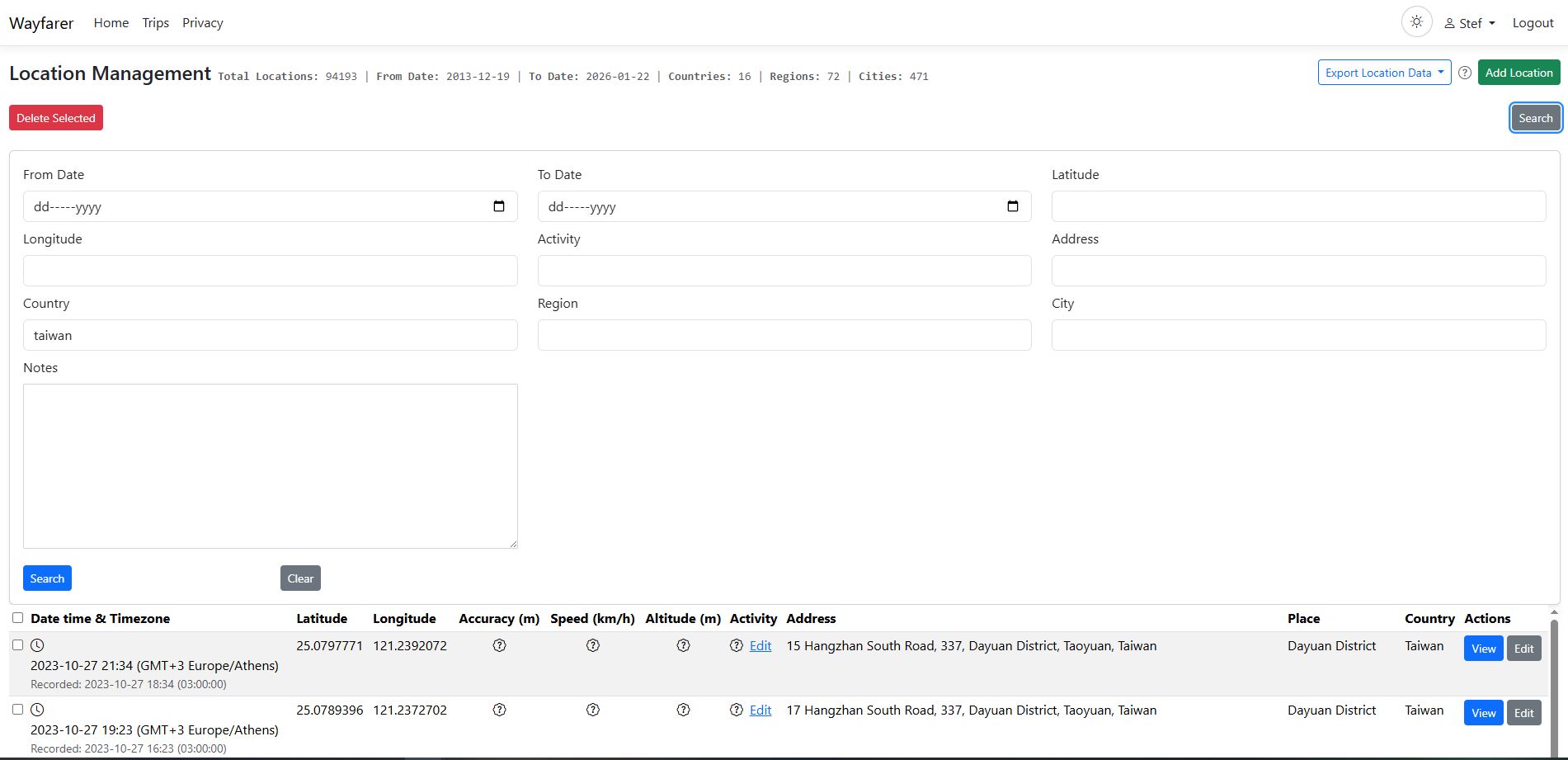
Locations retain their recorded time and local-time information when available. Check the displayed timezone when comparing a phone record with a web record, especially across travel or daylight-saving changes.
Add or correct a location
- Open All Locations and choose Add Location, or choose Edit for an existing record.
- Set the coordinates and timestamp. Choose an activity and add notes if useful.
- Review the address fields and save.
You can also change an activity from the location details or table without opening the full form. Inline activity changes save when you select the new activity.
Address editing does not contact a provider. A manual correction becomes your own address information. When you move a location, unchanged address information from the old position is discarded rather than presented as an address for the new coordinates. Review the address after changing coordinates.
Use Bulk Edit Notes from your name menu to update notes across matching records. Review the matching records before applying the change. Deleting selected locations removes history; export anything you need to keep first.
Read location details
Details can include activity, notes, coordinates, address, accuracy, speed, altitude, heading and source. Missing metadata means it was not available in that record; it does not imply a zero value.
Some enriched locations show structured address components and a separate Nearby mapped feature, Mapped area or Mapped feature. A nearby business or building is context, not proof that you visited it. Street address unavailable or Address details unavailable means the lookup did not supply that detail; retained provider display text may still be shown.
The Wiki action looks for related Wikipedia articles. Opening an article contacts Wikipedia. Optional address lookup and repair are explained in Personal location providers.
Understand your statistics
Timeline summaries show the number of locations, the first and last dates and recorded countries, regions and settlements. Select Countries, Regions or Cities in the summary to open geographic details. Expand Country → Region → city/settlement to see record counts and first/last recorded dates. A Map action returns you to that geography on the map. Counts measure recorded positions, not confirmed visits to venues; use Trip visits for the separate planned-Place workflow.
Geographic counts depend on the address labels saved with each location. Different spellings can split the same place, and missing labels are not invented. Country not recorded and Region not recorded group records with missing parent labels; they do not count as additional countries or regions.
Your private views summarize their own history or the complete selected date period, even when a large month/year map shows only sampled points. Public Timeline summaries cover all history eligible for public viewing, including the delay and Hidden Areas rules. Moving or zooming the public map does not change that full-history summary. A public Timeline with no eligible locations has zero counts and no first or last date.
Make your Timeline public deliberately
Choose Private for no public Timeline, public Now to share without a delay, or a delayed public Timeline to share only older locations. Hidden Areas exclude sensitive positions independently of that delay.
Your Timeline starts private. To publish it:
- Open Settings > Manage Timeline Settings.
- Optionally set a title, then enable Make Timeline Public.
- Choose a Time Threshold and save.
- Open the public link shown in Settings, preferably while signed out, to check what a visitor can see.
The threshold is a delay: 1 day shows locations at least a day old. First-time public sharing defaults to a one-day delay if you have not chosen one. Now shares without a delay and requires explicit confirmation that your current location will be publicly available.
Presets include one hour, day, week, month and year. For a custom delay, use a
number and unit: h hours, d days, w weeks, m months or y years. For example,
6h, 2w or 1.5d. Month and year delays are approximations of 30 and 365 days.
If settings report an invalid saved threshold, choose and save a valid one before
expecting public sharing to work.
Public details can expose precise positions, times, addresses, activities and notes. A delay reduces immediacy but still reveals history and routines. Making the Timeline private again stops public access through Wayfarer; it cannot recall copies somebody has already saved.
Protect sensitive places with Hidden Areas
Open Hidden Areas from your name menu. Add a named area and draw a polygon around a sensitive location such as home or work. Save it, then check the public Timeline. Edit the polygon if you need a wider boundary.
Locations within Hidden Areas are excluded from the public Timeline, its embed and its public statistics. Overlapping areas work together. Deleting a Hidden Area makes those records eligible for public viewing again, subject to the delay.
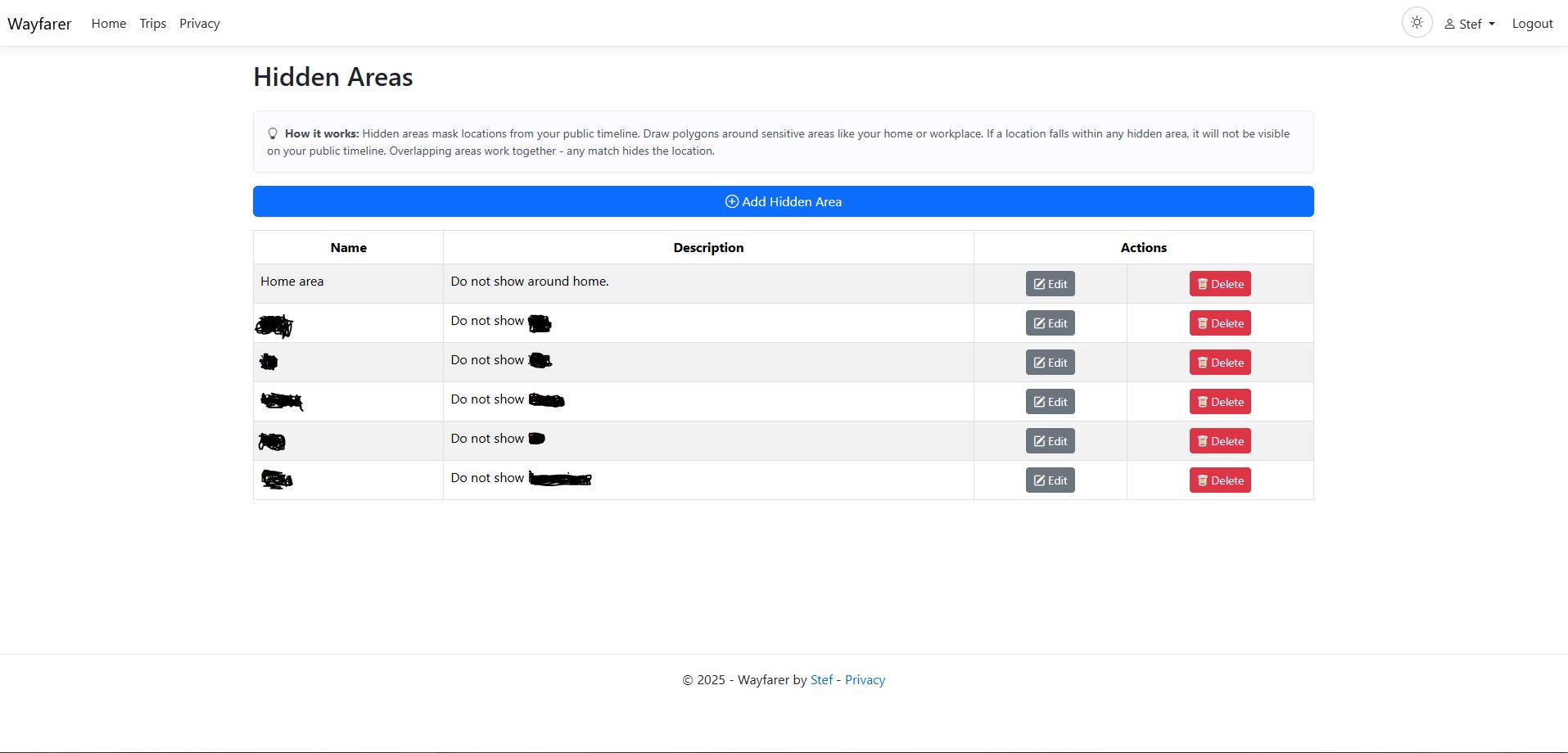
Hidden Areas do not delete records from your private history. They do not prevent capture or provider address lookup, hide locations in trusted Groups, or hide Places and visit progress in a public Trip. Set those sharing choices separately.
Share a link or embed the Timeline
When your Timeline is public, Settings shows its public link and offers Copy embed URL and Copy embed HTML. Open Wayfarer at the public HTTPS address people will use before copying. Paste the generated iframe into your website; adjust its height to fit the page.
The embed follows the same public visibility rules. Ordinary wheel scrolling and single-finger swipes scroll the surrounding page. Use Ctrl + wheel (Cmd on macOS) to zoom, mouse drag to pan, or two fingers to pan and zoom on touchscreens. Open full view opens the regular public Timeline in a new tab.
For a copy of your history or to add older records, see Import and export. For sharing with named people, see Groups.