Wayfarer
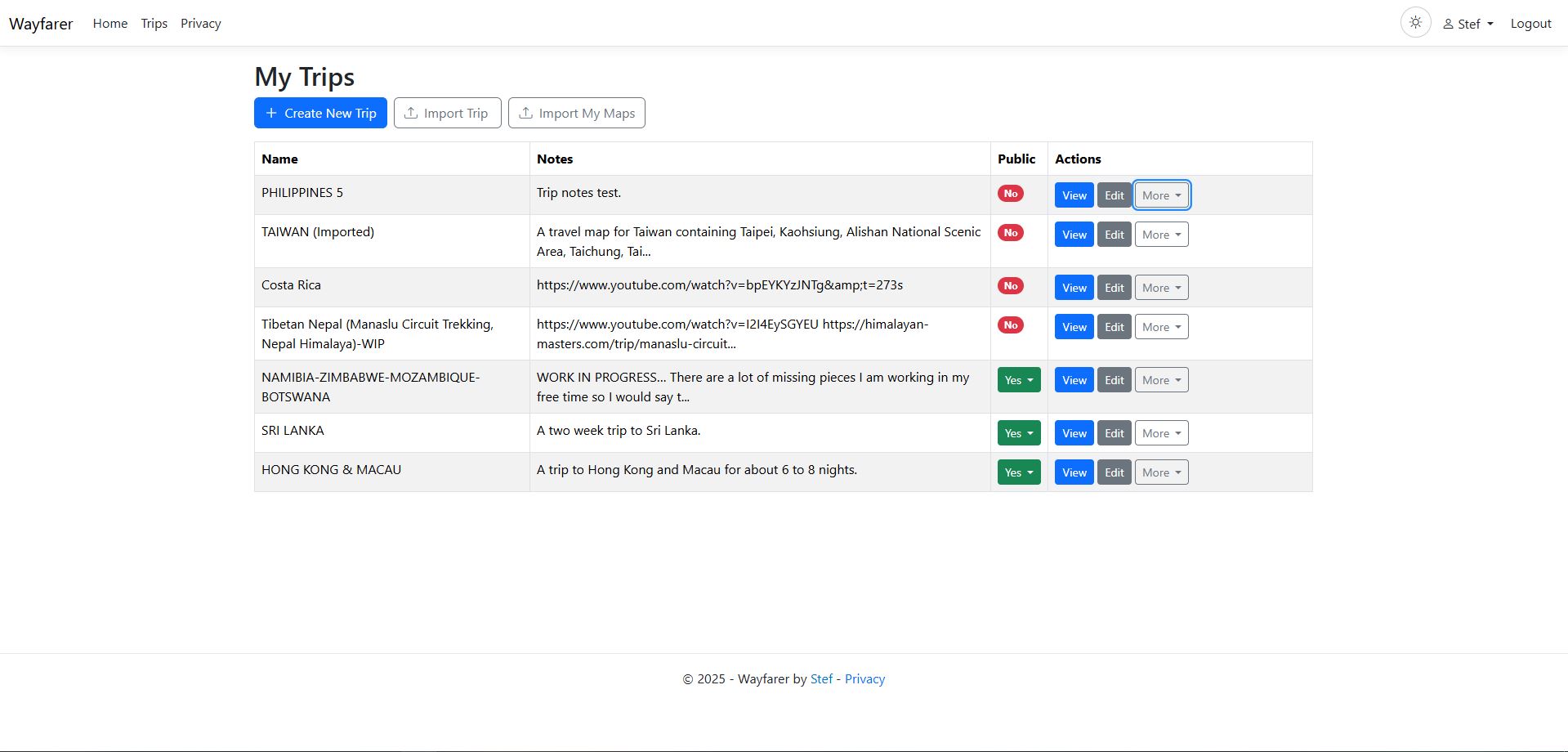
Plan and use Trips
Use a Trip to organize destinations, draw routes, carry travel notes and review which planned Places you visited. Create and edit the plan in the web app, then view it there or take it with you in WayfarerMobile. You can also make limited changes to your own Trip on the phone while traveling.
Build a simple Trip
Open Trips from your name menu and choose Create New Trip. Give it a name and save. New Trips are private. Add a description, tags or a cover image when they help you recognize and organize the plan.
A Trip contains four kinds of content:
| Item | Use it for |
|---|---|
| Region | Group related content, such as a city or one stage of a journey. |
| Place | A destination at one position, with a name, notes and optional marker styling. |
| Area | A polygon marking a zone, boundary or area of interest. |
| Segment | A journey from one saved Place to another, optionally through intermediate Places, with a route and travel information. |
Start with a Region, add two Places, then connect them with a Segment. Add more detail as you need it. An Area in a Trip is planning content; it does not have the privacy effect of a Timeline Hidden Area.
Trip settings saves retain your draft if another device changed an edited field. The save error stays visible; unrelated settings can change independently. Copy any notes or other edits you want to keep before reloading to review current values. Cancel / Reset discards the draft and adopts the values currently shown by the editor. Saving again still checks the original values; it does not force an overwrite. Older applications and already-open older editor tabs do not provide this protection.
Add Places and Areas
In the editor, select a Region and add a Place. Pick its position on the map or enter coordinates, then give it a useful name. Add notes, an icon and a color to make the plan easier to read. The Wiki action helps you look up related Wikipedia articles.
Map search runs when you submit a search. Choose a result and review its position before using it. Search sends the query to an external service: configured, verified Geoapify when available under its usage guard, or public Nominatim in the supported fallback cases. Do not put confidential information into a search. See Trip search and providers for the choice and failure rules. Manual Place entry always remains available.
For an Area, draw the polygon on the map, name it and add notes or styling. Use it to show a park, neighborhood or boundary rather than as a route between points.
Set the map view people start with
Pan or zoom the map in normal navigation mode to capture a proposed default view. Open Edit Trip and use Save & Continue or Save & Exit to save it. Moving the map alone does not save the Trip’s default view. You can also enter the center and zoom in Trip settings.
Fit All, Recenter Saved Trip View, Focus Active Entity, Place selection and search previews help you navigate without changing that default-view draft. Drawing an Area or editing a route also leaves it unchanged. Cancel / Reset discards the settings draft without moving the map.
The editor URL can preserve your current map view when shared or reopened. Opening such a link does not overwrite the Trip’s saved default. If you move the map while a settings save is underway, a newer view can remain unsaved; the editor stays open when another save is needed.
Connect Places with Segments
Choose saved Places for From and To. Add saved Intermediate places in the order you want to pass through them; these are the Via points of one Segment. Use the move controls to reorder them.
A Via Place cannot repeat another Via or either endpoint. From and To may be the same Place for a loop. For example, Hotel → Museum → Market → Hotel is one Segment with two intermediate Places.
Choose a transport profile for planning and add notes. That choice describes the journey and can supply an automatic planning speed. It does not choose an external routing provider or its routing mode.
Draw or change the route manually
From, every Via and To remain fixed route anchors. Add, move or remove route points between those anchors to draw the path you want. Save the Segment to keep it.
Clear Route removes custom geometry while keeping the saved Place connections. Wayfarer then connects all anchors in From/Via/To order. Those straight connections are a planning fallback, not a calculated road route. Cloning and native Trip exports preserve the ordered Places; see Trip file compatibility.
Preview a provider-generated route
After configuring a directions provider, select a supported provider mode under External routed path and choose Generate routed path. Wayfarer shows a temporary dashed proposal with proposed distance and estimated travel time.
Review the line, stops and estimates. Save Segment commits the generated route together with your other Segment edits. Discard proposal removes the preview and leaves the current route unchanged. Generating a preview alone does not replace your saved route or ordinary draft fields.
If you have an explicit manual duration override, saving the proposal keeps that duration. A failed save keeps the preview available for retry or discard. If the proposal is no longer usable, discard it or explicitly generate a fresh one. You can continue manual planning if the provider is unavailable or its guard is full.
Read distance and duration
Distance is read-only. For manual routes it is calculated from the saved geometry, or the ordered anchor connections when there is no custom geometry. A saved provider route can retain the provider’s distance and travel-time estimates. The accepted saved result remains authoritative through reload, export, import and copying. Provider unavailability and planning-speed changes do not replace a saved provider estimate. Changing the route or its anchors establishes a new result and clears attribution that described the previous route.
Use automatic estimate calculates manual-plan duration using the selected transport profile’s planning speed. An incomplete route or missing planning speed can leave that estimate unavailable. Manual lets you enter a duration, including zero; it remains your choice when the route or profile changes until you explicitly select automatic estimation again. Provider travel-time estimates and planning estimates are guidance rather than a promised arrival time. Manual intent also survives generating a new provider route. If you switch a saved provider route from Manual back to Automatic, regenerate its routed path to obtain a fresh provider duration; Wayfarer does not keep a competing hidden automatic estimate behind your Manual value.
Record and review visits
Plan Places, record locations with a connected app or a manual entry, then review detected visits to compare the plan with your journey. Trip progress shows visited and unvisited Places; visit history lets you inspect and correct the evidence. For journeys already in your Timeline, use backfill below.
As location observations arrive, Wayfarer checks whether they are near your planned Places. With default settings, two nearby observations within the detection rules confirm a visit; they need not become two saved Timeline rows. Your administrator controls detection settings. Sparse or inaccurate observations and closely spaced Places can miss or misidentify a visit. Arrival, departure and dwell time are inferred, and proximity does not prove that you entered a venue.
Open Trip Visit History from your name menu to search by Trip, Place, Region, date or open/closed status. Review arrival, departure, dwell time and contributing locations. You can edit or delete visits and follow their location records to check the evidence. Visit records keep a snapshot of the Place even if the plan changes later.
Mobile visit alerts and spoken cues can help you notice detected arrivals while traveling. Review visits here when you need to check the evidence or correct progress.
Find visits in older history
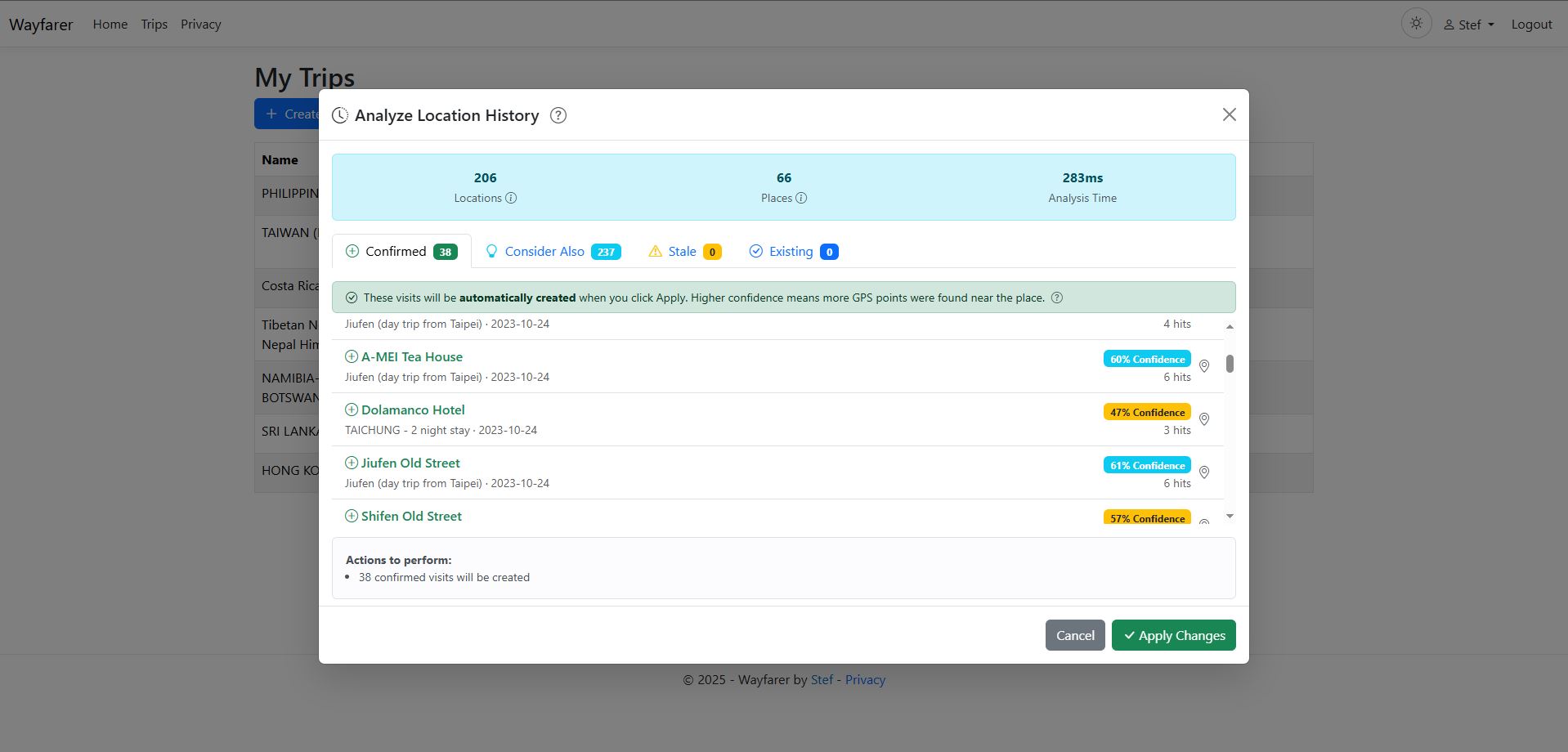
Use Backfill Visits in the Trip’s menu to analyze locations already in your Timeline. Choose a date range if useful, then run the analysis. Review its tabs:
- Confirmed: matches that meet the detection requirements.
- Consider Also: possible visits with weaker or sparse location evidence.
- Stale: recorded visits whose Place was deleted or moved.
- Existing: visits already recorded for the Trip.
Select the additions or deletions you want. Open a row’s context map to compare the Place with contributing recordings, then review the action summary and choose Apply. Analysis alone does not make those changes. Suggestions indicate proximity; they do not establish that you entered a venue.
Clear All Visits removes the Trip’s visit records. Use it only when you intend to discard that progress; it does not remove your Timeline locations.
Follow your progress
The Trip editor’s progress header shows the visited count and percentage. Its visit report can show all, visited or unvisited Places, with a Region breakdown and visit details. Use these views while traveling or when reviewing the journey.
Publish, embed or copy a Trip
Make a Trip public when you want visitors to read the plan without signing in. Review its notes, Places and routes first. A public Trip can appear in discovery, be copied by signed-in users and be retained in exported or downloaded files.
Share Visit Progress is a separate option for a public Trip. Enable it only when you also want visitors to see your visits and journey progress. Public Timeline delays and Hidden Areas do not protect this Trip content or progress.
If Trip Settings reports Sharing change not confirmed, the earlier change may have saved or may still finish. Your latest sharing choice is retained in the open editor, including a disable chosen during or after the failed save. Saving settings is paused to avoid repeating the uncertain change. Closing and reopening Trip Settings keeps this hold; it does not confirm the server outcome.
Keep the editor open to retain your choice, or choose Leave without saving and review its warning. Leaving or reloading loses the retained choice and other unsaved edits without undoing the earlier request. It is not a successful save or recovery. A refreshed value, even one matching your choice, cannot prove that the earlier request has finished. This editor cannot safely complete an uncertain sharing change automatically. After an acknowledged successful save, a newer sharing choice remains unsaved and can be saved explicitly in the usual way. Switching away from Trip Settings cancels its pending Save & Exit navigation, so a later successful reply cannot discard a newer editor draft. Any save-triggered exit also checks the current unsaved drafts before leaving.
Use the public sharing menu to copy a link, Copy embed URL or Copy embed HTML. Copy at your instance’s public HTTPS address. Trip embeds let ordinary scrolling move the containing page; deliberate map gestures and Open full view work as described in Timeline embedding. Making the Trip private stops its public Wayfarer view but cannot recall copies.
Browse public Trips from the top-level Trips link. Search names and descriptions, filter tags using all/any matching, and choose a sort or grid/list view. Sign in with a User account to Clone a public Trip into your own plans. Edit your copy independently; cloning does not change the original.
For KML imports, reusable exports and printable PDF guides, see Trip import and export.